
- Login to the Parish website.
- Navigate to Posts and click on Add New.
Add title and content
In the Add Title field, write the title of your blog post. Below it, you can begin writing your content directly, or add the content of your post in the form of blocks.
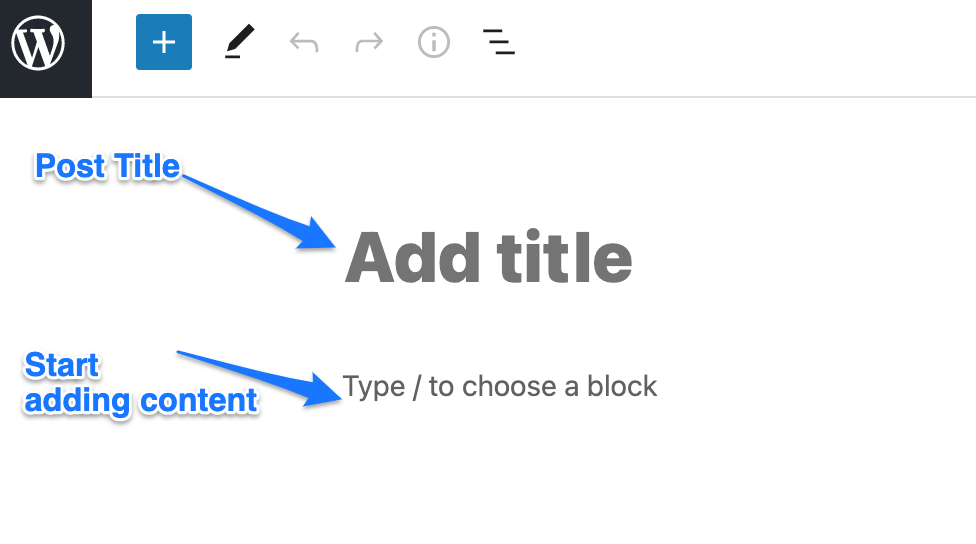
The Gutenberg editor lets you add different useful blocks such as a paragraph, list, heading, tables, images, quotes, and more.
To add blocks, click on the + sign on the left side, or press enter, and you’ll see the + sign to add blocks.

Heading block
Use headings to introduce new sections and organise content to help visitors (and search engines) understand the structure of your content.
To add a heading to your content, click on the + sign and choose “Heading”.
You can add H1-H6 headings using this block.
Adding images
To insert an image, click on the + sign and choose “Image”.
Upload an image file or select it from the media library. Alternatively, you can drag and drop images from your system, and the block editor will automatically create an image block for it.
To edit the image size, click on the Block tab in the top right-hand side of the editor.
To edit image setting such as alignment, add a link or replace an image, click on the image and use the menu options that appear on top of it.

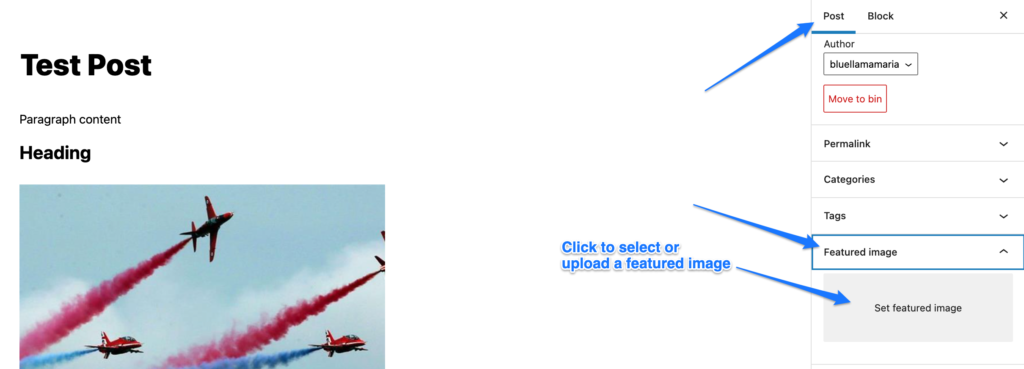
Set featured image
A featured image or a cover image is the primary image that you set on the news post. It makes the post more meaningful and appealing.
Featured image appears next to each post’s heading on the News & Events page.
A good resource for free photography is unsplash.com
There are two options on the top right-hand side of the editor – Post and Block. Click on the Post section, and you’ll see the Featured image field.
This field allows you to add a featured image to your post.
Adding an Icon Thumbnail
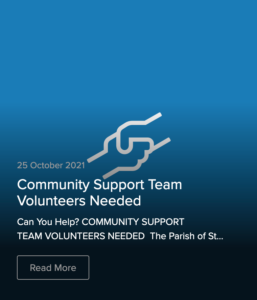
You can use an Icon instead of a featured image. Here’s an example how an icon would look like on News page (Note! Background colours are different for each parish)
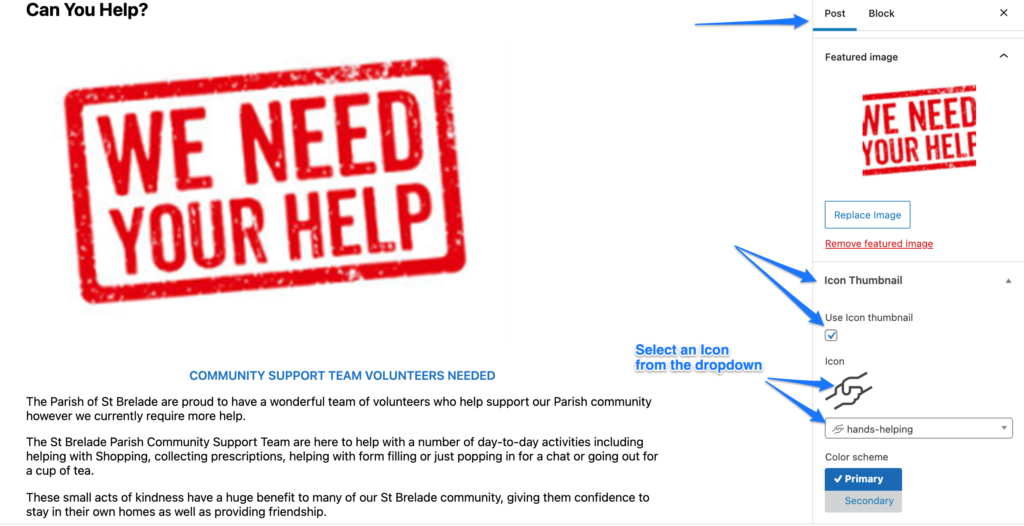
To add an icon to the news post, click on the Post section, and you’ll see the Icon Thumbnail field. Tick the “Use icon thumbnail” and select an icon from the dropdown list.
Tip: Shortlist the icons by typing a keyword – in this example, we used ‘hand’ and selected hands-helping icon.
Show draft, preview, and publish options
On the top right section of the editor screen, you’ll see Save Draft, Preview, and Publish buttons. Here you can save your content as a draft to publish it later. You can also use the preview button to see how your post looks online. After you’re done adding content, you can instantly publish your news post so that it will be visible on the Parish website.